Showing posts with label Tweaks. Show all posts

Friday, August 12, 2011

August 12, 2011

How to Lock any Folder Without using any software?


How to Lock any Folder Without using any software?


You might be wondering that How any folder can be locked without using any software like Folder Lock, File Lock, etc. People want to lock the folders that they do not want to share with others or they do not want others view the contents inside the folder. So if you also want to lock a folder which you don't want others to see, you have to read this post carefully and follow the steps given. So now if you are ready to lock a folder, follow these steps :


  • First of all open a blank Notepad document. To open a blank Notepad document go to Start Menu >>> All Programs >>> Accesories >>> Notepad.

  • Copy this entire code given below and paste it there.

  • Now replace " type your password here " with a password with wich you want your folder to be protected.

  • Now you can save your notepad file with the name " locker.bat ".To do this go to File menu >>> Save As... >>> type locker.bat >>> Save.

  • Now go to the place where you have saved tha file locker.bat. You will notice a MS-DOS Batch File with the name locker.

  • Double click it. You will notice a Locker named folder there.

  • Now just copy what you want to lock and paste it inside the folder named Locker.

  • Again double click MS-DOS Batch File with the name locker. Now you will notice a black window asking you "  Are you sure u want to Lock the folder(Y/N) "

  • Now press Y and hit enter on your keyboard.

  • Now the Locker folder will get disappeared.

  • To unlock the Locker folder double click the same file and enter the password.


**********************Code Starts*********************


cls


@ECHO OFF


title Folder Locker


if EXIST "Control Panel.{21EC2020-3AEA-1069-A2DD-08002B30309D}" goto UNLOCK


if NOT EXIST Locker goto MDLOCKER


:CONFIRM


echo Are you sure u want to Lock the folder(Y/N)


set/p "cho=>"


if %cho%==Y goto LOCK


if %cho%==y goto LOCK


if %cho%==n goto END


if %cho%==N goto END


echo Invalid choice.


goto CONFIRM


:LOCK


ren Locker "Control Panel.{21EC2020-3AEA-1069-A2DD-08002B30309D}"


attrib +h +s "Control Panel.{21EC2020-3AEA-1069-A2DD-08002B30309D}"


echo Folder locked


goto End


:UNLOCK


echo Enter password to Unlock folder


set/p "pass=>"


if NOT %pass%==type your password here goto FAIL


attrib -h -s "Control Panel.{21EC2020-3AEA-1069-A2DD-08002B30309D}"


ren "Control Panel.{21EC2020-3AEA-1069-A2DD-08002B30309D}" Locker


echo Folder Unlocked successfully


goto End


:FAIL


echo Invalid password


goto end


:MDLOCKER


md Locker


echo Locker created successfully


goto End


:End


********************Code Ends**********************

August 12, 2011

How to Fix Low Virtual Memory Error in Windows


Generally when you install/run very big applications like 3DMax, Adobe Photoshop or Macromedia Dreamweaver the windows based PC�s start giving you a error message saying � Your system is low on virtual memory. To ensure that Windows runs properly, increase the size of your virtual memory paging file.


Reasons for Low Virtual Memory :


Lets say you are running a application like Adobe Photoshop and while you are rendering a big sized image the pc starts using high amount of RAM and when there isn�t any adequate Random Access Memory on your PC which can handle processing of this data. This is when the PC starts using the Virtual Memory.


What is Virtual Memory :


Temporary storage used by a computer to run programs that need more memory than it has. For example, programs could have access to 4 gigabytes of virtual memory on a computer�s hard drive, even if the computer has only 32 megabytes of RAM. The program data that does not currently fit in the computer�s memory is saved into paging files.


Finding Source of Low Virtual Memory Problem :


In order to quickly solve this problem you need to first find the source of it by checking out the Task Manager and analyzing all the programs to find which one of those is using the highest memory and closing them. This way you can close the programs which you are not actively using and those which use high amount of your memory.


Click on Windows Task Manager > View > Select Columns


Next Click on Select Columns option from the View Menu and Check on Virtual Memory Size Option


Sunday, June 13, 2010

June 13, 2010

Experts agree � TuneUp Utilities is the best tool for Windows optimization

TuneUp Utilities can make your Windows operating system faster, more comfortable and more secure with just a few mouse clicks. And all operations performed on the operating system are completely safe, because all changes are monitored by TuneUp Rescue Center and can be undone at any time. All TuneUp Utilities modules can be accessed through a common interface that is divided into six categories.

Free download tuneup utilities 2010The software helps both beginners and experts to make Windows meet their needs in a way that is better, easier and safer. All important system options are explained in an easy way and can be turned on or off at the click of your mouse. TuneUp Utilities will then make the necessary changes in the registry or boot files automatically. We place a high value on system stability, so that Windows won't stop working reliably. And most changes that you make can be undone in TuneUp Rescue Center - easily and safely.

TuneUp Utilities automatically runs important maintenance tasks for you, makes you aware of any problems and offers simple solutions. This ensures performance is always at its best. A slow and untidy computer is now a thing of the past for you. You can also use TuneUp Utilities to customize the appearance of your Windows system - to make working on your computer more enjoyable.

With TuneUp Utilities you will quickly make your Windows system faster and more convenient to use- and ensure that it stays like this for the long term. This makes TuneUp Utilities the perfect program for everyone: for those who would rather leave the computer maintenance to a reliable partner as well as for those who would rather do everything themselves.

The TuneUp Turbo Mode provides an immediate performance boost whenever you need it. When you use your computer in the TuneUp Turbo Mode, an analysis is performed to see which tasks, programs and functions are currently running in the background that are not strictly necessary. These programs are stopped or slowed down, allowing the additional processing power gained to be used exclusively by the programs you are actually running.

tuneup utilities, tune up utilities, tuneup utiliity, tune up utility

Maintain System
Regular maintenance increases the stability of your PC, but is complicated and takes a lot of time when doing it manually. Spare yourself the stress! With TuneUp Utilities, you can clean up your computer and delete unnecessary files with only one click. Neat!
  • 1-Click Maintenance and Automatic Maintenance
  • Optimize system startup and shutdown
  • Defragment hard disks
  • Remove broken shortcuts
  • Defragment registry
  • Clean registry
Increase performance
Whether you are working or gaming: TuneUp Utilities increases the performance of your PC. Programs that are used rarely or never are tracked down, startup processes are shortened and unwanted garbage files are eliminated. For trouble-free working on your PC.
  • Turbo Mode
  • Configure Live Optimization
  • Free up disk space
  • Configure system startup
  • Display and uninstall programs
Fix problems
With only a few clicks, you can fix typical Windows problems as easy as pie � without being a PC expert yourself. TuneUp Utilities finds errors on data carriers and fixes them automatically � about 60 of the most frequent problems under XP�, Vista�, and Windows 7�. TuneUp Utilities can even restore files deleted by accident � quickly, easily, and reliably.
  • Fix typical problems
  • Restore deleted data
  • Check hard drive for errors
  • Manage running programs
Customize Windows
Give your Windows a new look with TuneUp Utilities and customize programs and system settings to meet your needs: cool new boot screens, icons, and animations provide that personalized look for your Desktop. You can easily customize the appearance of Windows and settings of many programs to your liking.
  • Personalize Windows appearance
  • Change Windows settings
Additional functions
TuneUp Utilities offers you transparency and safety and keeps you up to date. Stay informed with the System information and Optimization Report, undo changes made accidentally, or check for available updates. From fast and safe editing of the registry to deleting data � even computer experts will find applications to meet their needs.You can find all the features that provide you with an overview of your PC and more security in this area.
  • Display TuneUp Optimization Report
  • Undo changes
  • Check for updates
  • Show system information
  • Permanently erase data
  • Editing the registry
Name : sirqueza
Product key : N1YD6Q-6JP6QP-2JN2MH-05JJVV-M3Q5T3-APTWNR
Download and Install TuneUp Utilities 2010 and Register with the name and product key above.

Please let me know if the name and product key above works for you, so that i can provide you with some more such posts. You can the commnts form below.

Monday, April 26, 2010

April 26, 2010

Shutdown and Restart Windows XP in Seconds!!

What do you do to shutdown your Windows XP? Of course you will do the following,
  1. Click Start Menu ->
  2. Click Turn Off Computer ->
  3. Then you get a window with three icons: Stand By, Turn Off and Restart.
  4. Then you click Turn Off button to shutdown your windows and Restart button if you want it to be restarted.
All this process usually takes 6-7 seconds. But in some slow coputers it might take 10-20 seconds.
And if you have some programs running in the background then it opens End Now window which further takes 4-5 seconds. Now, it would be shocking for you if I tell you that you can do the same thing in a fraction of seconds with a click. You can surely do that by creating Shutdown and Restart icon on your desktop. To do this simply follow these steps:


Creating Shutdown Icon

To create a shutdown icon on your desktop do the following,
  • Right click anywhere on your Desktop and select New > Shortcut.
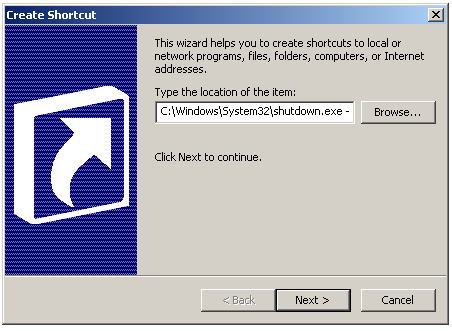
  • In the new window that opens Copy paste this command,
<<<<C:\Windows\System32\shutdown.exe -s -f -t 00>>>>


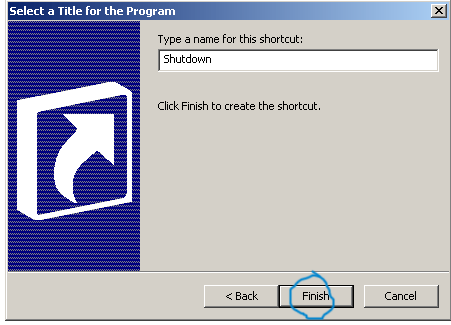
  • Click Next and Name it Shutdown as shown below


  • You will get an icon as shown below,

Clicking this Icon will Shutdown your Windows Instantly. If you don�t like the Icon Image, you can customize it too.


Creating a Restart Icon


Follow exactly all the steps discussed above to create a Restart Icon. You only need to add a different command for your Restart Icon. Here is the command for your Restart Icon,

<<<<C:\Windows\System32\shutdown.exe -r -f -t 00>>>>


You will get an icon like this,
Clicking this Icon will Restart your Windows Instantly. If you don�t like the Icon Image, you can customize it too. This is a customized image.


Customization

Customizing the Shutdown Icon
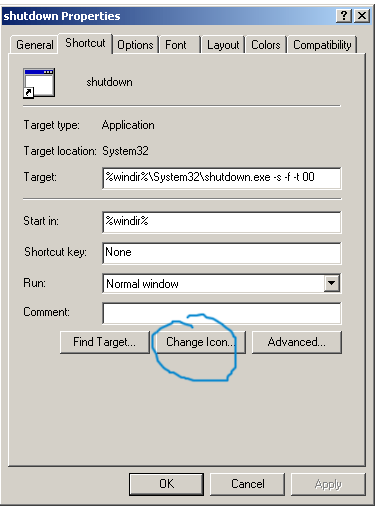
  • Right Click on the shutdown Icon and select Properties.A window will open as shown below,


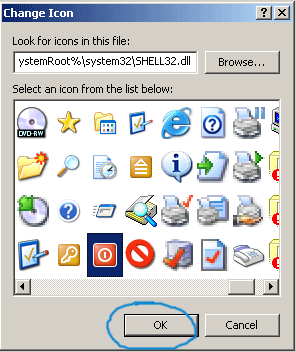
  • Click Change Icon button and choose an Icon from those available,

    You can also download an icon of your choice and save it to your local drive. To use an icon of your choice simply click the browse button and specify the path where you have saved the icon.
    • Your new Shutdown Icon will look like this,

    Customizing the Restart Icon

    The Restart Icon can be customized in the same way as we did for the Shutdown Icon.
    After customization, the Restart Icon will look like this,


    Tuesday, April 20, 2010

    April 20, 2010

    How to Read Popular Magazines Online for Free?

    There are many different ways through which you can read different magazines online for free of cost but in this article iam going to show you a excellent way which was sent to us by one of our blog reader. Generally most of the paid magazines are paid ones and the subscription costs range from 20-100$ per year which is the reason if you try to opt for a few magazines the total annual bills would reach to bigger numbers.


    First of all you need to download the Safari Browser which comes preinstalled in Mac computers and which is available as a free download for my readers. Next you need to go to the Advanced option in it by clicking on Edit > Preferances > Advanced > Show Develop Menu in menu bar. Click on the checkbox to yes.


    Next you will find a new option on your Browser�s Menu Bar under the name of Develop where you need to select the option of iPhone Agent. Go to Develop > User Agent > Mobile Safari 3.1.2 iPhone.


    Once this is done what really happens is that, your browser now opens websites as if they were loading on a Apple iPhone. This would make you access the iPhone optimized websites inside your Safari Browser. Next access the URL http://imgs.zinio.com/iphone/. Next you will find a list of ebooks as shown in this screenshot which when clicked would open in full screen on your browser and also a recommendation that if you open these on iphone, landscape mode is recommended. Overall a excellent website for apple iphone users which can now be accessed on your computer and accessed anywhere anytime.

    Download Safari 4 Here for Free.
    April 20, 2010

    How to Monitor RAM Usage with Memory Cleaning Tool � Memory Cleaner?

    Does your computer hang regularly when you are use multiple applications which include high resource using software�s like Mozilla Firefox, FTP Programs etc, and the only solution offered by your PC Seller is that you need to upgrade either your complete PC or else your RAM to the maximum compatible RAM.

    Once you install this small application you will get a report with the total Memory Usage currently used and the Average and Maximum Usage. You will be able to clean the System Cache and Trim Processes. Once these settings were run i was able to decrease my memory usage from 55% to 45% which is a quite good result because while you are running numerous applications which are all useful, any small increase in free memory can help you easily handle your applications easily.


    Features of Memory Cleaner :

    1. Trims processes� working set.
    2. Clears system cache.
    3. Monitors RAM usage and reports minimum, maximum and average (true average, not (min+max)/2).
    4. Reports Pagefile and virtual memory usage.
    April 20, 2010

    How to Fix Low Virtual Memory Error in Windows

    Generally when you install/run very big applications like 3DMax, Adobe Photoshop or Macromedia Dreamweaver the windows based PC�s start giving you a error message saying � Your system is low on virtual memory. To ensure that Windows runs properly, increase the size of your virtual memory paging file.
    Reasons for Low Virtual Memory :

    Lets say you are running a application like Adobe Photoshop and while you are rendering a big sized image the pc starts using high amount of RAM and when there isn�t any adequate Random Access Memory on your PC which can handle processing of this data. This is when the PC starts using the Virtual Memory.


    What is Virtual Memory :
    Temporary storage used by a computer to run programs that need more memory than it has. For example, programs could have access to 4 gigabytes of virtual memory on a computer�s hard drive, even if the computer has only 32 megabytes of RAM. The program data that does not currently fit in the computer�s memory is saved into paging files.

    Finding Source of Low Virtual Memory Problem :
    In order to quickly solve this problem you need to first find the source of it by checking out the Task Manager and analyzing all the programs to find which one of those is using the highest memory and closing them. This way you can close the programs which you are not actively using and those which use high amount of your memory.
    Click on Windows Task Manager > View > Select Columns


    Next Click on Select Columns option from the View Menu and Check on Virtual Memory Size Option


    Next move on to the Task Manager�s main process tab and find all the programs which are using high amount of Virtual Memory and End their Process.


    You can also try to uninstall and reinstall these high memory using programs because sometimes older versions of some software end up using high amount of RAM/Virtual RAM. I would recommend you to setup your Virtual Memory to 1.5 times of your physical memory for better performance.

    Wednesday, April 7, 2010

    April 07, 2010

    Regain Hard Disk Space & Clean Up Data

    This tip is useful for most Windows Operating System based PC users where in they want to regain the hard disk storage space instead of buying a new Hard Disk Drive. Currently you would find these options only in Microsoft Windows 98, ME, 2000, XP and Vista. If you find that your Disk Drives are full and you get a message for the same then its time for buying a new External Hard Disk Drive, upgrading your internal hard disk or else applying the following tweaks.


    Click on My Computer Icon located on your desktop and go to the desired drive in which you want to regain the space by deleting unnecessary files. Right click on the drive and click on �Properties�. On the main first �General� Tab you will find �Disk Cleanup� option, Click on it.


    It starts scanning for Compressed Old Files, Catalog Files for the Content Indexer & Recycle Bin Files. Then gives you with a quick report on the files which can be deleted, and a option to Check/unCheck them before deleting. Generally these files are permanently deleted and you cannot recover them. The Old Compressed files are those which are saved on your after a certain time period and there is generally no need for those.


    Once you select these files and CleanUp you would regain a lot of hard disk space which was previously used by useless files.


    The saved space may not be very high but it depends on the files space already used and deleted after the above step but it can still help you when you are in urgent need of some Disk Space while installing a new software.